
.webp)
Extract Any Mail Ultimate connects to Gmail through OAuth 2.0, so you're authorizing access the same way you would for any trusted app — no password ever gets typed into or stored by the software. Once connected, you choose which folders or labels to pull from (Inbox, Sent, Important, or any custom label), and everything is processed locally on your Windows PC.
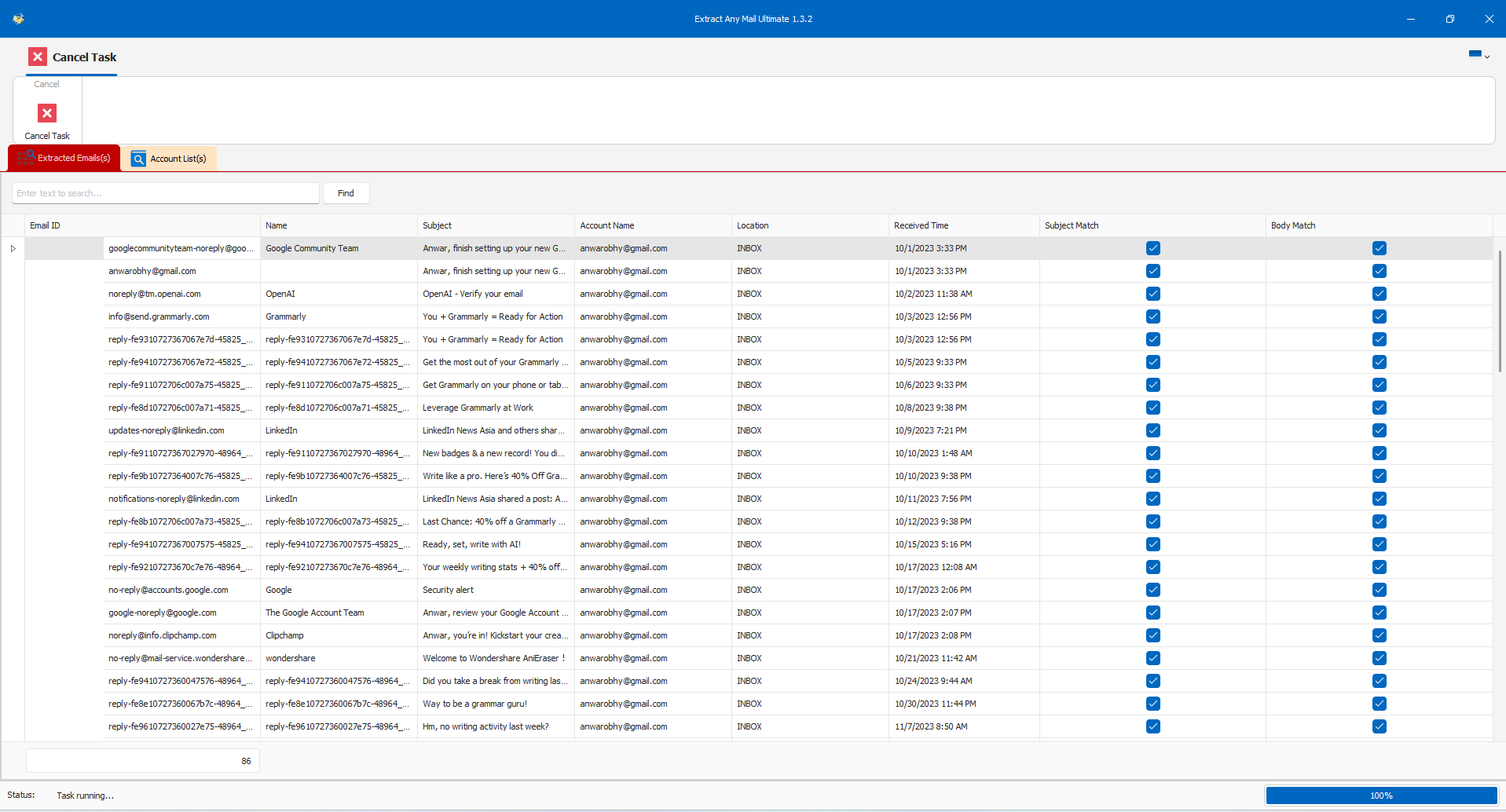
Yes — a Gmail email address extractor scans the folders or labels you select and pulls out the email addresses found inside those messages, then lets you export them. Extract Any Mail Ultimate handles this through a secure OAuth 2.0 connection to Gmail, and you can save your results as XLSX, CSV, or TXT depending on what you need next.
Google Contacts only gives you what's already been saved as a contact. Gmail mailbox extraction goes further — it pulls addresses straight out of the emails themselves, catching people you've corresponded with but never actually added to your contacts list.
Your Gmail mailbox can contain email addresses that are not saved in Google Contacts

The manual hurdle: Manually opening messages and copying addresses one by one is slow and impractical when your mailbox contains hundreds or thousands of emails.

Customers, leads, suppliers, applicants, colleagues and other contacts may appear only inside your Inbox, Sent messages or Gmail labels.
A fast, task-focused 6-step workflow that keeps your Gmail credentials secure on Windows
Built specifically to support Gmail mailbox structures, OAuth 2.0 authorization and Windows local processing
A transparent breakdown comparing Gmail extraction against Browser add-on and Chrome extension
Free Gmail add-ons and Chrome extensions are great for quick, one-off pulls inside the browser. A dedicated Windows desktop extractor is built for larger volumes, local privacy, and repeatable exports — without per-message limits, daily caps, or recurring subscriptions.
Technically precise explanations of OAuth token authorization, local Windows memory processing, and cryptographic transport
Extract Any Mail Ultimate uses Gmail OAuth authentication. Authentication takes place through Google's authorization flow in your default browser instead of requiring the application to store your Gmail password.
According to the current product implementation, extracted email addresses are stored locally on the computer rather than being uploaded to an ASTGD processing server.
The product uses encrypted SSL/TLS connections when communicating with supported email servers, preventing interception of data between your PC and Google API endpoints.
Real scenarios where automated mailbox address scanning replaces manual copy-and-paste

Recover email addresses from previous conversations when contacts were never added to your CRM. Scan your Sent folder to compile everyone you reached out to in previous quarters.
.webp)
Create a structured list from addresses appearing throughout an existing mailbox. Consolidate vendor communications, client discussions, and stakeholder threads into unified tables.
Find historical customer or supplier addresses from Gmail correspondence. Ensure valuable client points of contact are not lost when employees change or accounts transition.
Create a portable list of addresses before reorganizing or migrating mailbox workflows, switching domain email providers, or upgrading internal helpdesk systems.
Collect addresses from authorized mailbox data without manually opening each individual email. Rapidly compile event attendees, webinar questions.
Only extract and use email addresses you have the right to access and process. Follow applicable privacy, anti-spam and data-protection requirements (such as CAN-SPAM, GDPR, and CASL) when using exported contact information.
Real interface captures of the Gmail account setup, OAuth authorization, label targeting, and export screens.
Real benchmark measurements of mailbox scanning speed, address discovery rates, and deduplication efficiency
We document technical requirements and platform boundaries clearly so you know exactly how the software operates
Download the free trial to test Gmail folder scanning on your Windows PC, or secure a lifetime license
Attributable reviews from verified professionals on independent software platforms